Automatically back up your Botble website files and database to Google Drive, Amazon S3, Cloudflare R2 or MEGA.
Includes scheduled and emergency backups, flexible retention, ZIP or encrypted archives, and a backup monitoring dashboard.
RestoreVault by CodeUpp
Cloud Backup & Recovery for Botble
Your website. Your backups. Your recovery plan.
Version 1.1.1 · 29 September 2026 · Maryam International LLC
Google Drive · Amazon S3 · Cloudflare R2 · MEGA
Installation · Why RestoreVault? · Daily rotation · Recovery · Changelog · FAQ · Support
</div>
Meet RestoreVault
RestoreVault gives Botble administrators a dedicated place to protect website files and their database. Choose Google Drive, Amazon S3, Cloudflare R2 or a supported MEGA installation, schedule daily backups, and retain the latest successful recovery points automatically.
Create emergency backups before important changes. Follow real progress, connection checks and backup history from a responsive admin dashboard. Choose an ordinary ZIP for familiar manual recovery or encrypted archives for key-protected backups. Uploads are downloaded again for integrity verification before they are marked complete.
For encrypted backups, keep an independent recovery key and use the included offline tool to recover into a separate directory—even when your Botble admin panel is unavailable. Built by Maryam International LLC for CodeUpp.
A completed upload is useful. A tested recovery plan is essential.
InstallationBefore you begin
A supported Botble installation using PHP 8.3+ and MySQL/MariaDB with InnoDB tables. This release targets the supplied Botble source; verify your exact Botble release on staging.
PHP sodium, zip, pdo_mysql and proc_open; writable private application storage.
A compatible mysqldump or mariadb-dump executable. Your database account must be allowed to export the complete configured database, including views, triggers, routines and events.
A functioning Botble/Laravel scheduler invoked every minute. The plugin adds its task to that scheduler; no second hosting cron entry is needed.
Enough temporary disk space for the database export, inventory and archive parts. The 128 MB preflight minimum is not a promise that every database fits.
Your selected provider account and storage allowance. Provider charges are separate.
MEGA only: official MEGAcmd installed and signed in under the same operating-system user as PHP/cron. Many shared hosting plans cannot run it. Google Drive/S3/R2 do not require MEGAcmd.
Do not replace your hosting backups until you have completed a successful restore test. Do not run a restore test against your production database.
1. Upload the plugin
Open your hosting File Manager and locate the application directory containing artisan, platform and storage. Upload the plugin folder here:
your-botble-application/ └── platform/ └── plugins/ └── RestoreVaultByCodeupp/ ├── plugin.json ├── src/ ├── resources/ ├── public/ ├── recovery/ └── README.md
Keep plugin.json directly inside RestoreVaultByCodeupp; avoid an additional nested folder.
2. Activate and publish
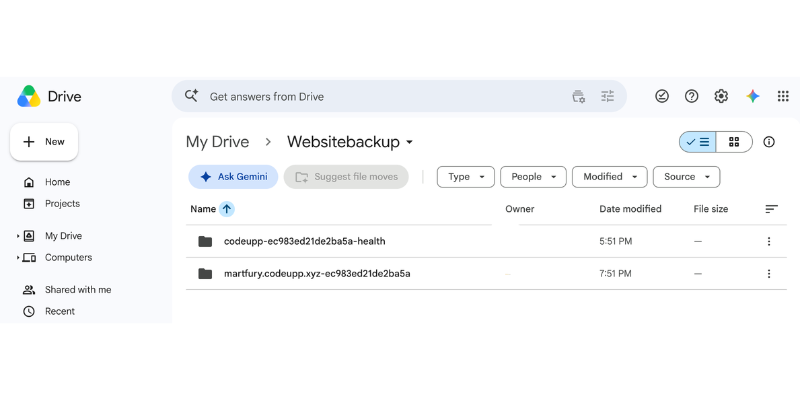
Activate RestoreVault — Google Drive Codeupp in Admin → Plugins. The sidebar label is Google Drive Codeupp, including when another provider is selected.
From the application directory, run the normal Botble asset/cache commands:
php artisan cms:publish:assets php artisan optimize:clear
No plugin database migration is required. Settings use Botble's encrypted setting value; progress/history are stored in private storage/app/codeupp-restorevault. Preserve this directory when upgrading. Keep it outside the public document root and inaccessible through web-server aliases.
When upgrading installations with queue workers, restart those workers through your normal deployment process. The scheduler can operate without a dedicated queue worker.
3. Choose a destination
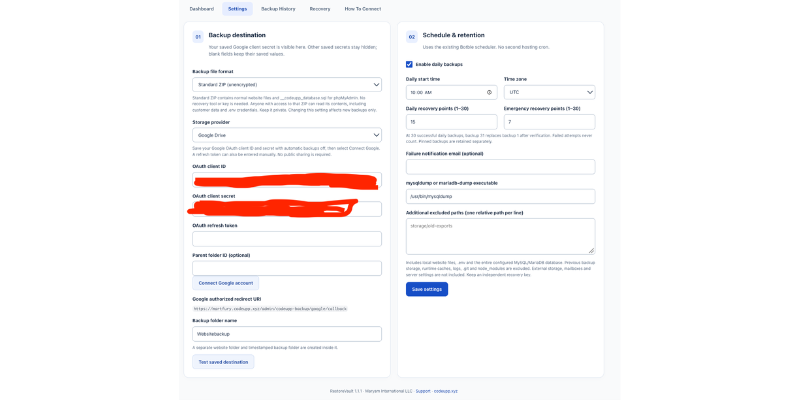
Open Google Drive Codeupp → Settings. The dropdown displays the relevant connection fields. The saved Google client secret is visible to settings-authorized administrators. Other saved secrets remain hidden; leaving a secret field blank keeps its saved value. Changing to S3 or R2 requires entering that destination's secret again.
Provider
Required setup
Google Drive
Your OAuth client ID/secret, followed by Connect Google account; optional existing parent folder ID
Amazon S3
Private bucket, region, access key ID and secret access key
Cloudflare R2
Private bucket, Cloudflare account ID, S3 access key ID and secret
MEGA
MEGAcmd binary directory and expected signed-in email; authentication takes place through MEGAcmd
Google Drive setup
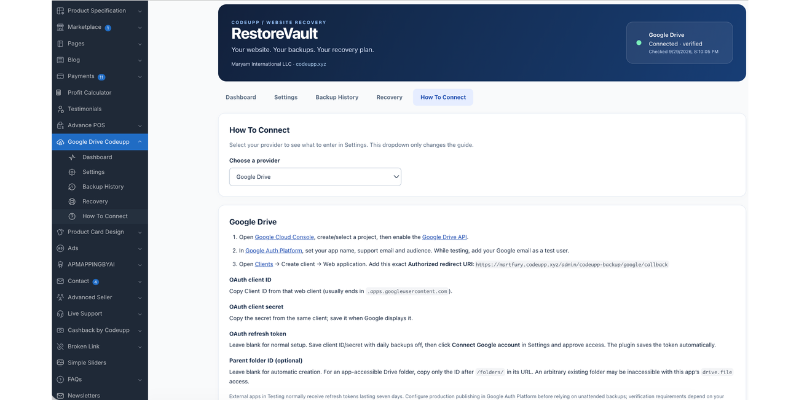
Create a Google Cloud project and enable the Google Drive API.
Configure its OAuth consent screen and a Web application OAuth client.
Add the exact Google authorized redirect URI displayed in the plugin settings to that client.
Save the client ID and secret in RestoreVault, initially with daily backups off.
Select Connect Google account, sign in and grant access. The plugin requests offline drive.file access and stores the refresh token encrypted.
Leave the parent folder ID blank to create the backup folder under the connected account. An arbitrary pre-existing folder may not be accessible with drive.file; only use a folder accessible to your OAuth app.
Test the saved destination. Configure the consent application appropriately for production; Google's testing-mode token restrictions can prevent durable unattended access. Google verification requirements depend on your app configuration.
You can enter a refresh token manually instead if you already have one for the same client. This plugin does not use a shared CodeUpp OAuth service or send your credentials to CodeUpp.
S3 and R2 setup
Create a private bucket. Grant the backup credentials permission to read, write and delete objects under the backup prefix. This release does not create buckets or edit bucket access policies. Avoid incompatible bucket retention/object-lock policies if you want the plugin to delete expired objects.
R2 uses https://<account-id>.r2.cloudflarestorage.com and region auto. It reuses the AWS SDK already used by Botble; it does not modify the media storage driver or copy your existing media credentials automatically. If the SDK is absent, install your Botble release's supported S3 dependencies through its normal dependency process.
MEGA setup
Ask hosting support to install official MEGAcmd and sign in using mega-login under the PHP/cron account. Complete any two-factor challenge there. Set the tool directory (for example /usr/bin) and expected account email in settings. The adapter uses the authenticated MEGAcmd service session and never accepts your account password in a command argument.
This is MEGA Drive integration, not MEGA S4 object storage. An unavailable/revoked session, quota limit or mismatched operating-system account must be resolved on the host. MEGAcmd must be available to the scheduler as well as PHP.
4. Choose your backup format
In Settings, select Backup format:
Format
Recovery
Key required?
Standard ZIP (unencrypted)
Extract ordinary files and import the included SQL
No
Encrypted backup
Decrypt with the independent recovery tool, then import SQL
Yes
Encrypted remains the default. The selection applies to new backups only; existing backups and active runs retain their original format. Standard ZIP contains customer data and credentials, including .env: keep the archive private. Cloud connection credentials remain encrypted in settings for either choice.
For encrypted backups only:
Open Recovery → Download recovery key. Save it securely somewhere independent of this server and your backup folder. Encrypted backup creation is gated on key export. Standard ZIP skips this requirement. Losing both the working installation and this key makes encrypted archives unrecoverable.
Download recover.php and Format.php as well. They need PHP CLI with sodium and zip, but do not require Botble to be running.
5. Set the schedule and make a test backup
Choose the daily time, time zone and 1–30 daily recovery points, then enable automatic backups. Set a separate 1–30 emergency recovery point allowance. Pinned backups remain outside these limits and consume extra storage.
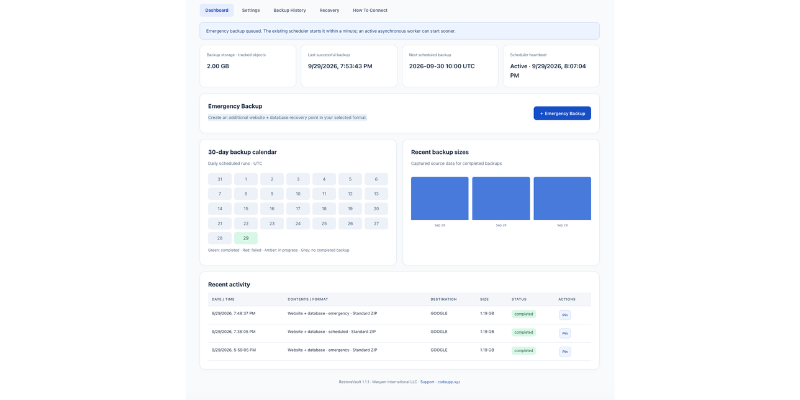
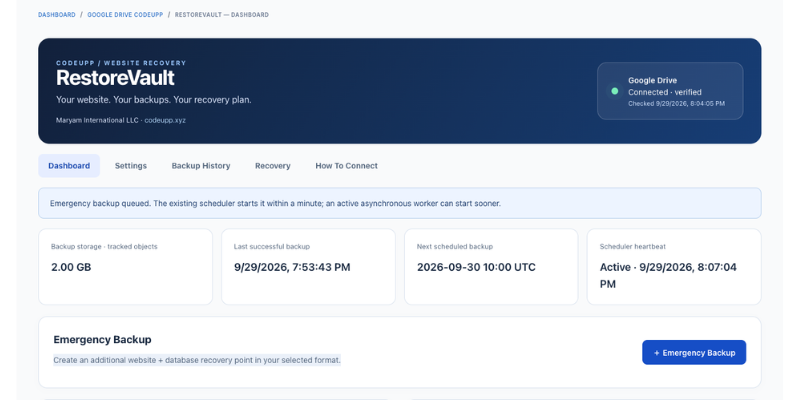
Select Emergency Backup on the dashboard. It queues immediately; the existing scheduler starts processing within its next minute tick. An already-running asynchronous queue worker can start it sooner. The page can be closed. “Queued” does not mean “completed”.
Check scheduler registration and run an initial maintenance cycle if needed:
php artisan schedule:list php artisan codeupp-backup:tick
schedule:list confirms registration, not that hosting cron is actually executing. Check the dashboard heartbeat and a completed test backup. The task name is codeupp-backup:tick.
Why RestoreVault?A recovery workflow inside your admin panel
Botble and your hosting tools provide the foundation for running your website. RestoreVault adds a dedicated cloud-backup workflow for administrators who want independent recovery points, visible progress and a consistent recovery kit.
Need
Existing workflow
With RestoreVault configured
Before a major change
Use available hosting/manual backup tools
Queue an emergency recovery point in admin
Regular offsite copies
Depends on your hosting plan and setup
Daily ZIP or encrypted backups to the selected provider
Keeping history
Manage retention through existing tools
Rotate successful daily and emergency backups separately
Knowing what happened
Review hosting/provider logs
See stages, dates, sizes and safe error messages
Checking transferred data
Depends on the backup tool
Read back and verify uploaded archive data
Admin panel unavailable
Follow your host's recovery process
Use the standalone staging recovery utility
No “zero overhead” claim: creating database exports, reading files, encryption and remote verification consume CPU, disk, bandwidth and provider quota. Backups run through background scheduler processes, with saved checkpoints. Encrypted archives use bounded parts; standard ZIP builds one full archive and requires more temporary space and longer uninterrupted operations. There are no storefront scripts or changes to product URLs, SEO metadata, search or media delivery.
Dashboard & administration
Submenu
What it contains
Dashboard
Provider health indicator, next backup, scheduler heartbeat, tracked backup storage, calendar, size chart and Emergency Backup
Settings
Backup format, provider credentials, OAuth connection, schedule, time zone, retention, notification email, dump binary and exclusions
How To Connect
Provider selector, credential links and concise explanations of every settings field
Backup History
Latest 200 records, stage/error information, retry/cancel actions and pin/unpin controls
Recovery
Key/tool downloads, available recovery points, ZIP/ encrypted manifest downloads and recovery instructions
The non-clickable health indicator animates only for a recent successful provider check. Checks are scheduled about every five minutes while idle; successful part transfers also update connection health. Status becomes stale after ten minutes without fresh evidence. Reduced-motion preferences disable the pulse.
A health check writes a small random probe, downloads it, verifies it and deletes it. This confirms those operations at that moment; it does not guarantee the next large backup will fit or succeed. Tracked storage represents recorded archive objects, not total provider-account usage, old versions or trash.
Daily rotation
At a limit of 30, after 30 successful daily backups the next successful daily backup makes day 1 eligible for deletion. The newest 30 remain. A failed day 31 does not remove day 1.
Retention counts successful recovery points, so failures may cause them to span more than 30 calendar days. Emergency backups and pinned recovery points do not consume the daily allowance. Cleanup advances through recorded objects in background cycles; expiration may take more than one minute. Empty provider folders and provider-maintained trash/versions may remain. The plugin never empties the account's entire trash or recursively deletes an arbitrary folder.
Old runs retain their encrypted destination snapshot. Changing the active provider does not redirect cleanup or downloads to the new provider. Keep old destination credentials working until their retained backups are no longer needed. Provider-side versioning, retention policies or revoked credentials can prevent actual space reclamation; cleanup failures are recorded.
Backup scope & consistency
Captures all readable regular files within the application root, including hidden configuration and dependencies, except documented exclusions.
Captures the complete configured default MySQL/MariaDB database, including plugin tables, views, triggers, routines and events where permitted. It does not discover other databases or hosting accounts.
Uses an InnoDB consistent database snapshot. Non-InnoDB tables fail preflight instead of presenting a potentially inconsistent export as complete.
Files are read over the duration of the backup. This is not an atomic snapshot of a changing database and filesystem. Schedule quiet periods and avoid deployments, schema changes, uploads or file mutations during a full backup; source mutations detected during capture stop the run.
Internal symlinks are recorded and recreated by recovery. External/broken symlinks must be explicitly excluded or their content moved inside the application root.
Standard exclusions: .git, node_modules, storage/framework, storage/logs, bootstrap/cache, the plugin's private work directory and common backup directories listed in the manifest. Add other backup/export directories explicitly.
Does not include externally hosted media, MEGA media offloading, email accounts, DNS, hosting configuration or database credentials outside the application configuration.
Each backup is independent; incremental/deduplicated backup chains are not implemented in version 1.1.0.
Recovery
Do a staging restore before relying on your first backup.
Standard ZIP: familiar manual recovery
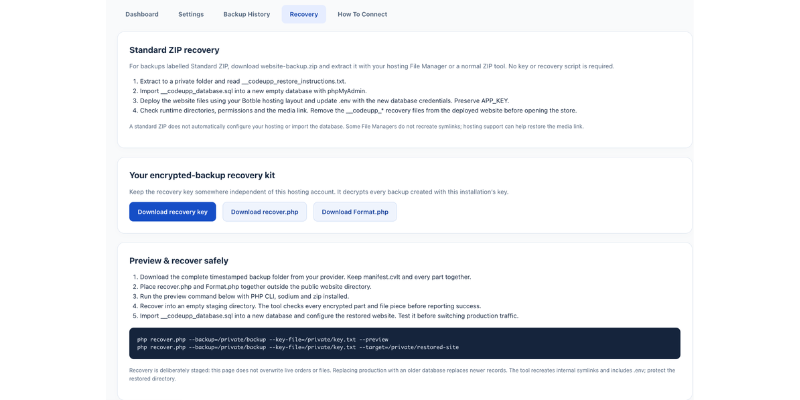
Download website-backup.zip from Recovery or your cloud backup folder. No recovery key or PHP decryption tool is required.
Extract it into a private folder. It contains normal application paths, hidden files such as .env, __codeupp_database.sql, and restoration instructions.
Create an empty database at your new host. Import __codeupp_database.sql using phpMyAdmin or the host's import tool. Large databases may exceed browser import limits and need hosting support or a command-line import.
Upload the application files following your existing Botble hosting layout. The folder is normally called public_html, but the correct document root depends on the installation. Protect .env and private application directories; do not blindly expose the whole application root.
Update .env with the new database name, username, password, host and website URL. Preserve the original APP_KEY.
Recreate excluded runtime cache/log directories, clear caches and check permissions. Some File Managers do not restore symlinks; check the internal media links recorded in __codeupp_manifest.json.
Remove the __codeupp_* recovery files from the deployed website and test the recovered site before sending live traffic to it.
An ordinary ZIP simplifies extraction; it does not automatically configure a new hosting account or import a database.
Encrypted backup: independent recovery kit
Download the entire timestamped backup folder from the provider. Keep manifest.cvlt and every part-XXXXXX.cvlt together. S3/R2 prefixes can be downloaded with their normal storage tools.
Keep recover.php and Format.php together, outside the public document root.
Preview the encrypted manifest:
php recover.php --backup=/private/backup-folder --key-file=/private/codeupp-recovery-key.txt --preview
Restore into an empty, private staging directory:
php recover.php --backup=/private/backup-folder --key-file=/private/codeupp-recovery-key.txt --target=/private/restored-site
The tool verifies encrypted parts and individual file pieces, reconstructs files and internal symlinks, and writes __codeupp_database.sql. It refuses a non-empty destination. An interrupted recovery leaves an incomplete marker; start again in a fresh directory.
Import the SQL into a new database with your hosting database tool or MySQL client. The recovery script does not automatically execute SQL or overwrite a live database.
Edit the recovered .env for the staging database and URL while preserving APP_KEY. Disable outgoing payments, email and scheduled production integrations during the test. Recreate the excluded runtime cache/log directories and check their permissions.
Verify login, orders, products, uploaded files and relevant third-party plugins. Switch live traffic only through your normal deployment/recovery procedure.
Restoring an older database over production replaces newer records. This tool does not merge orders made after a backup. “Completed” in backup history means archive upload/read-back verification; it is not a claim that you have performed a restore test.
ChangelogVersion 1.1.1 — 29 September 2026
Added How To Connect to the admin sidebar and tabs.
Added provider-specific credential instructions, official setup links and the site’s Google redirect URI.
Added short explanations for all shared settings and responsive guide checks.
Version 1.1.0 — 29 September 2026
Choose familiar ZIP recovery or encrypted protection.
Added the Settings backup-format dropdown with encrypted as the compatible default.
Added a single ordinary ZIP containing application files, SQL and restoration instructions, with no recovery-key export requirement.
Preserved each run's format when settings change; existing encrypted backups remain supported.
Added format labels and the correct download option in History and Recovery.
Added ZIP content hashing, remote read-back verification and temporary-space checks.
Added chunked Google Drive uploads and multipart S3/R2 uploads for larger archives.
Expanded recovery documentation and local regression/browser checks.
Version 1.0.0 — 29 September 2026
Initial release: encrypted cloud backups and an independent recovery kit.
Added Google Drive, Amazon S3, Cloudflare R2 and official MEGAcmd destination adapters.
Added conditional credential fields, encrypted settings and Google OAuth connection with state validation.
Added the Google Drive Codeupp sidebar with Dashboard, Settings, Backup History and Recovery.
Added daily time/time-zone settings through the existing Botble scheduler.
Added separate 1–30 retention allowances for daily and emergency backups, plus pinning.
Added emergency backup queuing, progress stages, retry checkpoints and cancellation between operations.
Added complete configured database exports and bounded encrypted file archives.
Added remote read-back verification before completion and retention eligibility.
Added destination snapshots so provider changes do not misdirect old-backup cleanup.
Added real provider health checks, stale-state handling, backup calendar and size charts.
Added private recovery-key export, manifest preview and standalone staging recovery tools.
Added optional failure emails using the website's existing mail configuration.
Added local regression and browser fixtures; see TESTING.md for results and live acceptance requirements.
There are no earlier releases of RestoreVault. Changelogs from other CodeUpp products do not apply.
Frequently asked questions
Can I restore without coding or decrypting?
Choose Standard ZIP before creating the backup. Extract it with normal ZIP tools, import the included SQL and update the new hosting database settings. You may still need hosting support for large SQL imports, permissions or media links. Encrypted backups continue to require their key and recovery utility.
Does changing the dropdown convert old backups?
No. It only changes new backups. Keep the recovery key for any encrypted backups you retain.
How much space does Standard ZIP need?
The archive stage requires approximately three times the captured file/SQL size plus 128 MB of free working space, in addition to the live website and already-created SQL export. Large ZIP creation and verification run as full background operations. An interrupted ZIP upload retries the whole object; encrypted backups retry at part boundaries. Your hosting process limits and File Manager ZIP/ZIP64 support still apply. For external queue workers, configure a sufficient worker timeout and a longer queue retry interval; the backup job allows up to two hours, but hosting limits can be lower.
Do I need another cron entry?
No, if your existing Botble scheduler already runs every minute. RestoreVault registers its own command within it. Merely opening admin is not a substitute for cron.
Does Emergency Backup finish immediately?
No. It queues immediately and starts on the next scheduler cycle, or sooner with a working asynchronous queue. Duration depends on website size, database export speed, storage and network capacity.
Can I close the admin page?
Yes. Browser polling displays progress; it does not drive the backup. Large database exports can take longer than a normal background step. Cancellation is available between operations.
Will it back up my whole hosting account?
No. It captures the local website application and its configured database within the documented scope, not other websites, hosting mailboxes or server services.
Will it move my product images to Google Drive?
No. Media mirroring/offloading was explicitly left out of this release. The website's media URLs and storage driver are unchanged.
What happens if a backup fails?
The failed stage retries with increasing delays, up to five consecutive attempts. The next successful checkpoint resets attempts. After exhaustion, correct the cause and use Retry. For a source-file change, cancel and create a new backup. Failed attempts do not replace successful recovery points. Cancelling removes local temporary data; recorded partial remote objects are cleaned up by subsequent idle maintenance cycles. A provider object whose upload acknowledgement was lost before it could be recorded may need manual cleanup.
Does it delete unrelated Drive files?
No. Retention deletes only the objects recorded for expired backups. It does not empty provider-wide trash. A dedicated backup folder/bucket prefix is recommended.
What if I uninstall?
Remote backups are not deleted by plugin deactivation/removal. Keep the recovery key and offline tools first. The plugin's settings and private history should be preserved if you intend to reinstall. Without that history it cannot reconstruct retention ownership automatically; the provider folders and offline recovery kit remain usable.
Can MEGA work on every hosting plan?
No. Its adapter requires the official MEGAcmd binary and authenticated background service under the correct OS account. Use Google Drive/S3/R2 where hosting cannot run MEGAcmd.
Are live backups and restoration tested with my provider?
No provider credentials were supplied during development. Local fixture verification does not certify a real Google, AWS, Cloudflare or MEGA account. Complete the acceptance checklist in TESTING.md on staging before live use or marketplace launch.
Do email alerts detect a completely stopped cron?
A stopped scheduler cannot send its own alert. The dashboard exposes its heartbeat; use independent hosting uptime/cron monitoring for alerts when the server or scheduler stops completely.
Are there storage limits?
Yes: your provider and hosting quotas apply. Thirty independent full backups of a 10 GB website may require roughly 300 GB before compression, plus emergency/pinned copies and any provider versions/trash. Read-back verification also uses transfer quota.
Contact & Support
Maryam International LLC — Creators of CodeUpp RestoreVault
Channel
Contact
maryaminternationalllc@gmail.com
Website
Include your plugin/Botble/PHP versions, destination type, failed stage and timestamp. Do not send recovery keys, passwords, OAuth tokens, database exports or customer data in support messages.
Technical references
Cloudflare R2 S3 compatibility
Have doubt? Contact us on WhatsApp
Our product is high quality. Contact us for any kind of custom work.
Last update:
Sep 30, 2026 03:00 AM
Published:
Sep 29, 2026 08:34 PM
Version:
v1.1.2
Category:
Tags: